
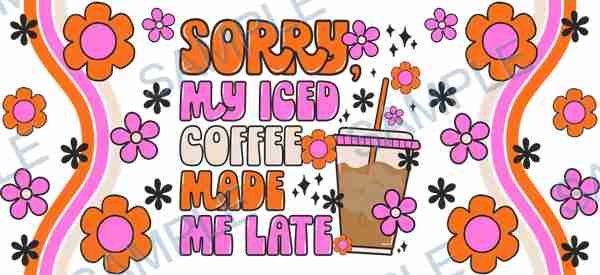
In this guide
Choose a direction, then keep the exact codeRotate all the way around the proposed joinTreat text, clear space and cup shape separatelyTurn the preview into a short review sheetUse seasonal signals as a palette brief, not a promiseConfirm the material and sample route with regional supportSend one complete quote request before orderingA wrap can look balanced as a flat image and still put an important word at the back of a cup. Before requesting a sample, decide which part should face the customer, what happens where the artwork ends meet, and how much clear space you want near the rim and base. ARTETRIBE's cup-wrap 3D preview helps turn these decisions into specific questions for regional support. It checks a visual direction, not the fit or manufacturing tolerances of your actual cup.
| Check in the preview | Confirm with regional support |
|---|---|
| Front-facing wording and orientation | Approved artwork and final text |
| Visible transition near the artwork edges | Physical join, coverage and actual cup dimensions |
| Overall spacing and visual balance | Production size, material, finish and application |
| A direction for a sample discussion | Quote, proof/sample route and production schedule |
Choose a direction, then keep the exact code
Browse the nearly 100k catalogue using keyword search, with phrases such as retro coffee cup wrap, autumn leaves or floral lettering. Filter for Cup Wrap and record the design code and quantity for each candidate. The examples below are real catalogue entries, not downloadable artwork files. You can also prepare your own image, provided you hold the rights for its intended use. Keep the original file and note which version you previewed; a similar-looking thumbnail is not enough to identify an approved design.
Rotate all the way around the proposed join
Open the 3D Product Preview tool, choose Cup Wrap, and enter a supported code or upload your authorized image. Identify the intended front first. Rotate slowly until you reach both ends of the artwork. Look for a word split between edges, an illustration cut in half, an awkward colour change, or a dense cluster that becomes the unintended focal point. If a continuous pattern matters, ask regional support whether the supplied artwork can be adjusted. A model that looks seamless does not confirm a physically seamless application.
Treat text, clear space and cup shape separately
Read the main phrase from the front, left and right. Check that you have not accidentally mirrored the artwork, and decide whether a name should stay centred on the main viewing side. Then inspect the top and bottom visually. Do not choose a universal millimetre gap from this guide: the correct coverage depends on the actual blank and production method. Provide measured usable height, circumference or supplier dimensions, and photos of any taper, handle or curved edge. The generic model cannot certify fit for every cup shape.
Turn the preview into a short review sheet
Record the selected code or file name, intended front, join preference and any text that must remain unbroken. Describe one issue at a time, such as moving the name away from the join or leaving more space above the illustration. Note the desired finished size in physical units, not just the apparent size on your screen. A screenshot can accompany the request, but it must travel with the original image or exact catalogue code and the written specifications. Do not substitute a screenshot for the production file.
Use seasonal signals as a palette brief, not a promise
For the US, Michaels' 2026 Halloween range includes nostalgic and playful colour directions. Japan's LOFT autumn stationery festival began on August 29 and includes illustrated stickers and paper goods. Korea's 10×10 is promoting autumn diary decoration and stickers in September. These retailer signals suggest comparing warm retro colours with lighter illustrated motifs; they are not verified demand figures for ARTETRIBE cup wraps. Use your own artwork or an authorized catalogue selection, not another retailer's protected characters or collection artwork.
Confirm the material and sample route with regional support
A cup-wrap layout is not itself a production method. Say whether you are asking about a transfer, adhesive decoration or another supported process, and give the actual cup surface. VOGRACE's sticker guidance is useful background on artwork preparation, but sticker-sheet specifications cannot automatically be applied to a cup wrap. Ask regional support to confirm the appropriate file setup, material, application requirements and care guidance. The 3D view cannot test adhesion, washing resistance, finish, colour accuracy or durability.
Send one complete quote request before ordering
Return to the homepage and contact regional support with the image or catalogue design code, quantity per design, product type, production method, dimensions, cup photos, packaging, deadline and destination region. Include the review sheet and request a fast quote, rapid sample support and the suitable small-batch customization route. Price and sample timing depend on the confirmed specification; this guide does not promise a fixed turnaround. Review the quote and any agreed proof or sample, then give order confirmation. Production is arranged after you confirm. Keep the approved file, code list and specifications for a later reorder.
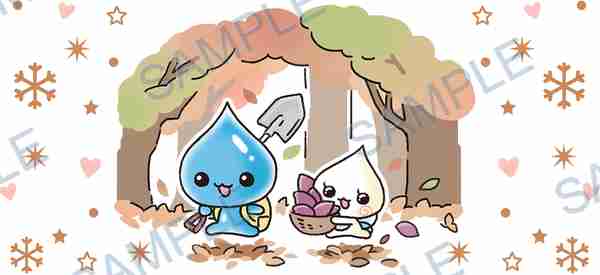 W-15030
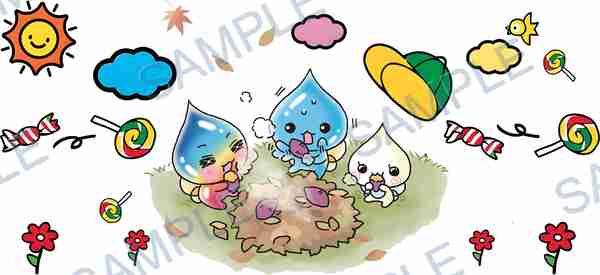 W-15029
Common questions
Can I enter a catalogue design code instead of uploading an image?
Yes. Select Cup Wrap in the 3D tool and use a supported catalogue design code. Record the same code and quantity in your quote request. If it does not load, send the code to regional support rather than replacing it with a different design.
Does the preview calculate an exact seam allowance?
No. It helps you inspect the visual transition around the model. Regional support must confirm the physical dimensions, coverage and join requirements for the actual cup and production method.
Should cup wrap text be mirrored?
Do not mirror it just because you are preparing a wrap. Check the intended readable direction and ask regional support for the file instructions for the confirmed production method.
Can I use this model for a tapered tumbler?
Use it only as a general direction check unless the model matches your blank. Send the actual dimensions and photos; a tapered blank may need a different layout and separate fit confirmation.
Can I request a small batch and sample first?
Yes, discuss small-batch customization and rapid sample support with regional support. Send your quantity, image or code and complete specifications for a fast quote. Availability, cost and timing require confirmation.