
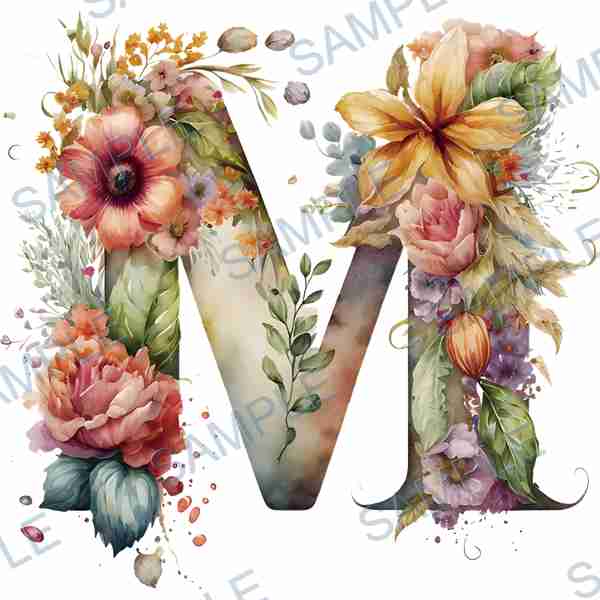
In this guide
Identify the file, not just its extensionKeep catalogue selection separate from artwork uploadReview the same image on the DTF modelProtect white details and soft edgesUse seasonal ideas without borrowing someone else's artworkSeparate the screen preview from print preparationSend a complete request for a quote and sampleYou upload an illustration, place it on a 3D shirt, and see a white rectangle around it. That rectangle may be part of the image rather than a fault in the preview. A white background and a transparent background can look identical on a white screen, but behave differently over a coloured product. This guide helps you identify what you uploaded, inspect the visual result, and send a clear file request to regional support. The preview is a direction check, not a final production proof.
| Image setup | What to check | Next action |
|---|---|---|
| PNG with transparent pixels | Product remains visible outside the artwork | Inspect edges and intended white details |
| PNG or JPEG with a white rectangle | White area belongs to the image | Confirm whether that background is intentional |
| Checkerboard saved into the image | Squares remain visible after upload | Export again from the original editable file |
Identify the file, not just its extension
PNG can store transparency, but a PNG is not automatically transparent. A flattened PNG can still contain an opaque white background. Ordinary JPEG does not store an alpha channel, which controls transparency; changing a filename from .jpg to .png does not remove the background. Open your own original artwork in an editor that displays transparency. If a checkerboard was captured in a screenshot, the squares may be actual image pixels. Export from the editable original instead of uploading a screenshot of it.
Keep catalogue selection separate from artwork upload
Browse the nearly 100k catalogue with keyword search, filter for DTF, and try a design keyword such as floral or botanical. Record the exact design code and quantity. The real examples below show lettering, gaps and delicate flower edges worth reviewing. Their watermarked JPEG thumbnails identify catalogue designs; they do not prove how the production artwork is prepared. Enter a supported code in the tool or send it to regional support. Do not erase a thumbnail watermark or treat a downloaded thumbnail as the approved production file. For a custom upload, use an image you own or have permission to use.
Review the same image on the DTF model
Open the free 3D Product Preview and select DTF Apparel. Upload your authorized image, or preview a supported catalogue code. Start with the front view and compare the visible artwork boundary with the file you supplied. Rotate the model to inspect position and visual balance. Adjust the available print size and position controls one at a time. Changing the scene background changes the area around the model; it does not remove pixels from your image. A preview screenshot can document an issue, but keep the original file or code alongside it.
Protect white details and soft edges
A design can legitimately include white lettering, highlights or a pale outline. Do not delete every white pixel merely to remove an unwanted rectangle. Check gaps inside letters, thin stems and the outer edge of a floral motif separately. Inspect your own artwork over both a light and a dark background in your image editor: a pale fringe may be hard to see on white. Soft watercolour edges and semi-transparent shadows need a separate production discussion. What looks smooth on a screen does not establish how white ink, fine detail or partial transparency will be prepared for printing.
Use seasonal ideas without borrowing someone else's artwork
Current retail signals provide useful test cases: Michaels' US Halloween collections use nostalgic motifs and dark florals; Japan's LOFT autumn stationery festival highlights illustrated decorations; Korea's 10x10 promotes autumn diary decoration in September. An original seasonal illustration can combine pale accents with small, separated details, making background checks worthwhile. These are merchandising signals, not measured demand for ARTETRIBE DTF products, and stationery trends do not prove apparel demand. Use an authorized catalogue choice or your own design, not a retailer's protected characters or collection artwork.
Separate the screen preview from print preparation
VOGRACE's iron-on transfer product guidance lists transparent-background PNG or PSD as preferred artwork formats. That is useful preparation context, not a promise that every ARTETRIBE product uses the same specifications. The browser preview and the production submission can also accept different formats. Ask regional support to confirm the appropriate production method, file requirements and treatment of white or semi-transparent areas. Specify the actual garment material, colour and desired print dimensions. A successful 3D upload does not certify fabric compatibility, physical print size, colour matching, wash resistance or a final proof.
Send a complete request for a quote and sample
Return to the homepage and contact regional support with your original image or catalogue design code, quantity per design, product type, production method, finished size, garment details, packaging, deadline and destination region. Explain whether the background should remain, which white details must be preserved, and what you noticed in the preview. Ask for a fast quote, rapid sample support and small-batch customization. These services do not imply a fixed sample deadline or universal minimum quantity. Review the quote and agreed proof or sample before order confirmation; production is arranged after confirmation. Keep the approved file version and written specifications for reorders.
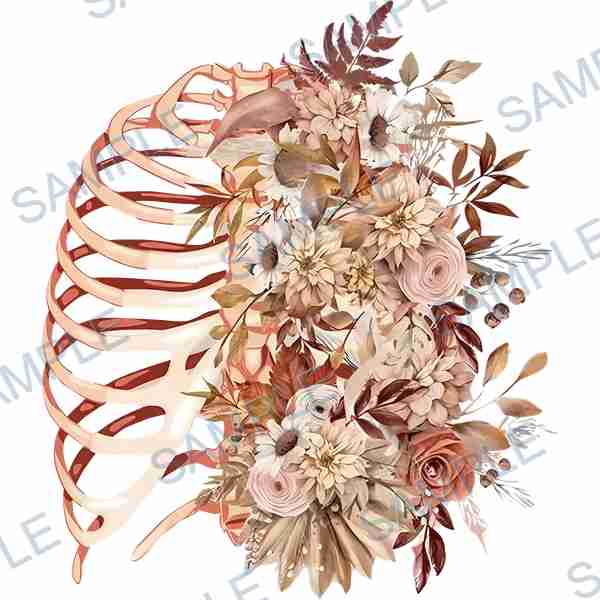 D-8295
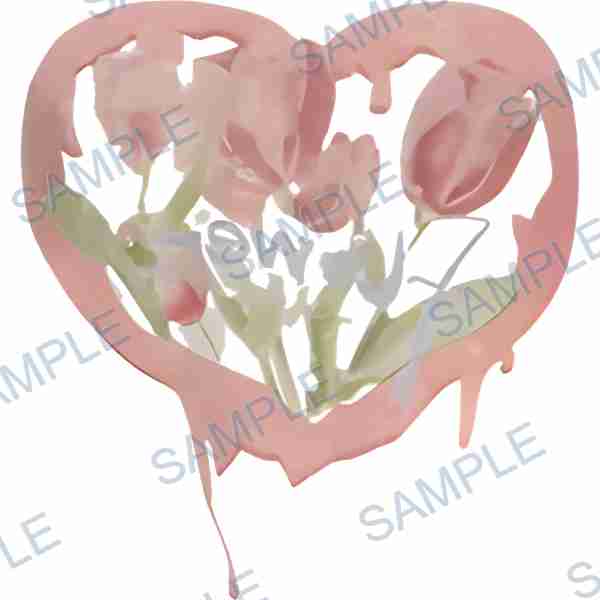 D-8266
Common questions
Why does my PNG still show a white box?
PNG supports transparency but does not guarantee that the file contains transparent pixels. Check whether a white background layer was included when exporting. Re-export your authorized original if needed; renaming a JPEG will not fix it.
Can the 3D preview automatically remove a background?
Do not rely on it as a background-removal or production-preparation service. Review the supplied image and ask regional support about any required edits. Changing the scene background does not remove the image background.
Does transparent PNG mean no white ink will be printed?
No. Image transparency, visible white artwork and production white-ink preparation are different issues. Regional support must confirm the print setup for the chosen material and production method.
Should I upload the catalogue thumbnail?
Use its exact design code for catalogue selection instead. Thumbnails may be watermarked JPEGs and are not production-ready downloads. If a code does not load, send the code and quantity to regional support.
Can I request a small batch after checking my image?
Yes. Send regional support the image or code, quantity and complete specifications for a fast quote and rapid sample discussion. Confirm pricing, sample arrangements and the order before production is arranged.